
People ask me all the time: "KP, once I get the system, how long can I run the air fryer?" Honestly? I don't know. But I can teach you how to read your system, and then you'll know.
This is the same talk I give every customer before they drive out of the shop. Nearly every ZD install runs Victron gear: a SmartShunt or BMV-712 battery monitor, a Victron MPPT solar charge controller, and an Orion XS DC-DC charger (sometimes a MultiPlus inverter/charger too). All of it talks to one free phone app, VictronConnect.
The app is a big part of why we like Victron. It's clean, it's honest, and when something looks off on the road, you can screenshot it and send it to us. Nine times out of ten, I can tell you what's going on from the screenshot alone.
We'll go through the three devices in the order I teach them: least information first, most important last.
First: find your stuff
Victron gear at my shop follows kindergarten rules: if your name isn't on it, it's not your backpack. Don't touch it.
The app connects over Bluetooth, so it shows every Victron device in range. Parked at a campground next to another Victron rig? Their gear will pop up in your app too. A good installer puts a custom name on every device. Ours are all named after the truck, so on my rig, everything starts with Fresa: Fresa DCDC, Fresa Solar, Fresa Batteries.
If it's got your name on it, it's yours. Everything else, leave alone.
1.The DC-DC charger
The DC-DC charger takes power from your truck while the engine runs and uses it to charge your house batteries. It's not the least important device, but it tells you the least, so it goes first.
On or off, nothing in between
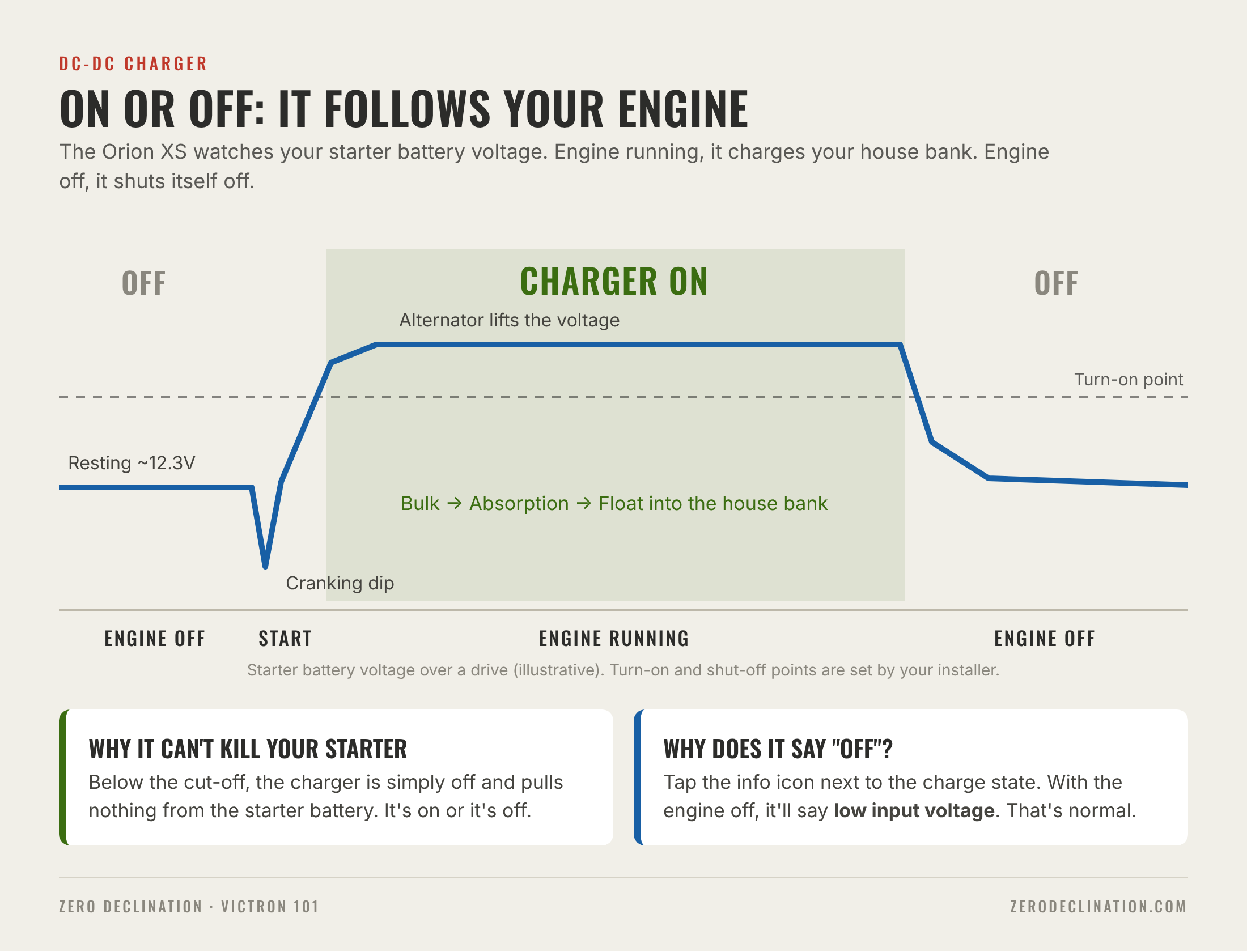
The charger watches the voltage on your starter battery. Engine off, that sits around 12.3V and the charger reads Off. Tap the little info icon and the app will even tell you why: low input voltage.
Start the truck and the alternator pushes that voltage up. Once it crosses the turn-on point you've set, the charger kicks on. Shut the engine off and it drops out again. That's the whole trick, and it's why this charger can't kill your starter battery. If the starter voltage is low enough to shut it off, it isn't pulling anything.
Charge states
All three Victron chargers use the same three states. Learn them once:
- Bulk: not full. Pushing as much current as it can.
- Absorption: nearly full. Topping off.
- Float: full. Just holding it there.
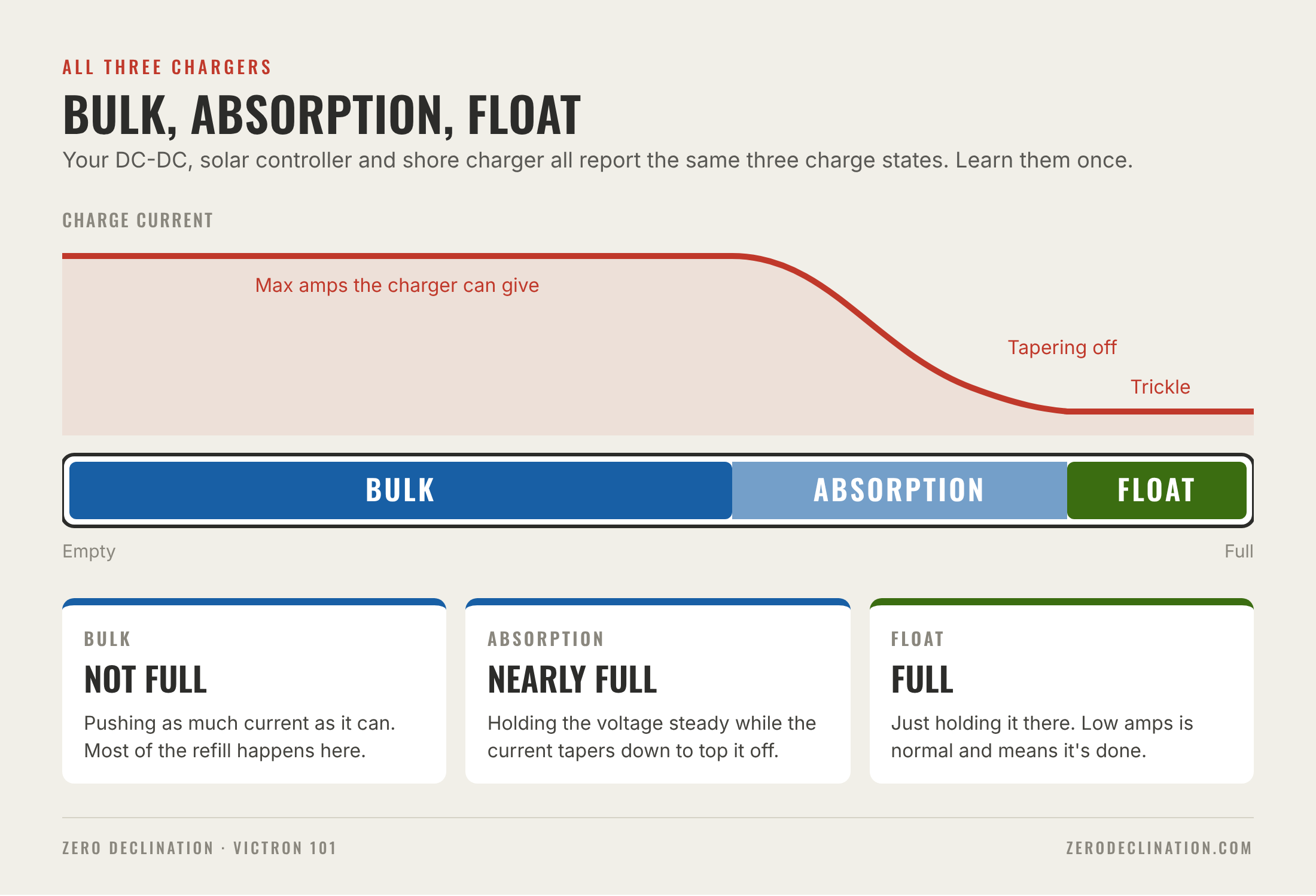
In my screenshot it's mid-morning after a night of running the furnace and fridge, so the batteries have room to fill. The charger's in Bulk.
Input vs. output
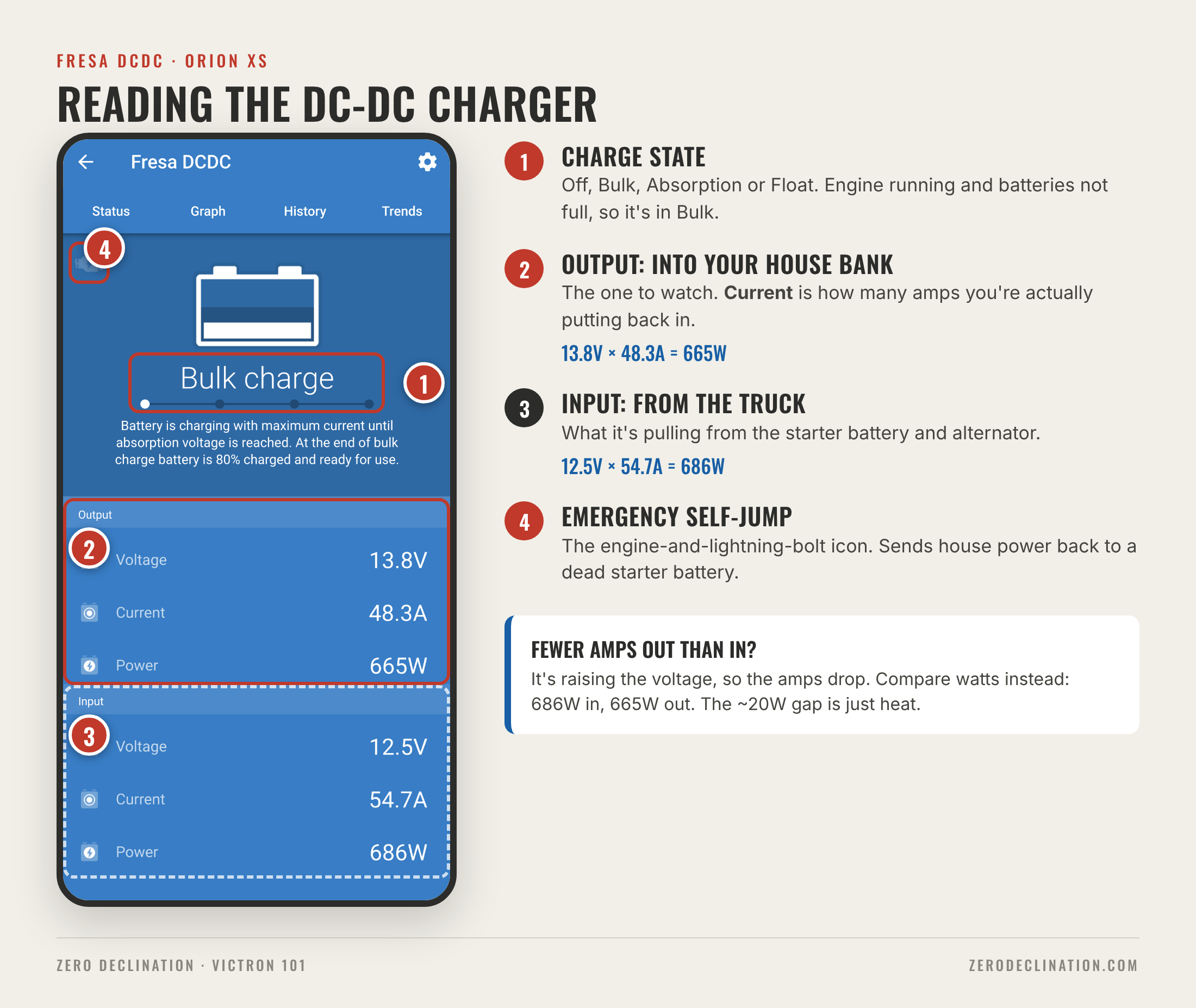
The screen shows two blocks of numbers. Input is what it's pulling from the truck. Output is what it's sending into your house batteries. Each block is volts, amps, and watts (watts = volts × amps).
Here it's pulling 54.7A at 12.5V from the truck and sending 48.3A at 13.8V into the house bank. Fewer amps out than in looks like a loss, but it isn't. It's converting to a higher voltage, and the watts nearly match: 686W in, 665W out. The ~20W difference is just heat.
The number to watch: output current. That's how many amps you're actually putting back in the bank.
New: the emergency self-jump
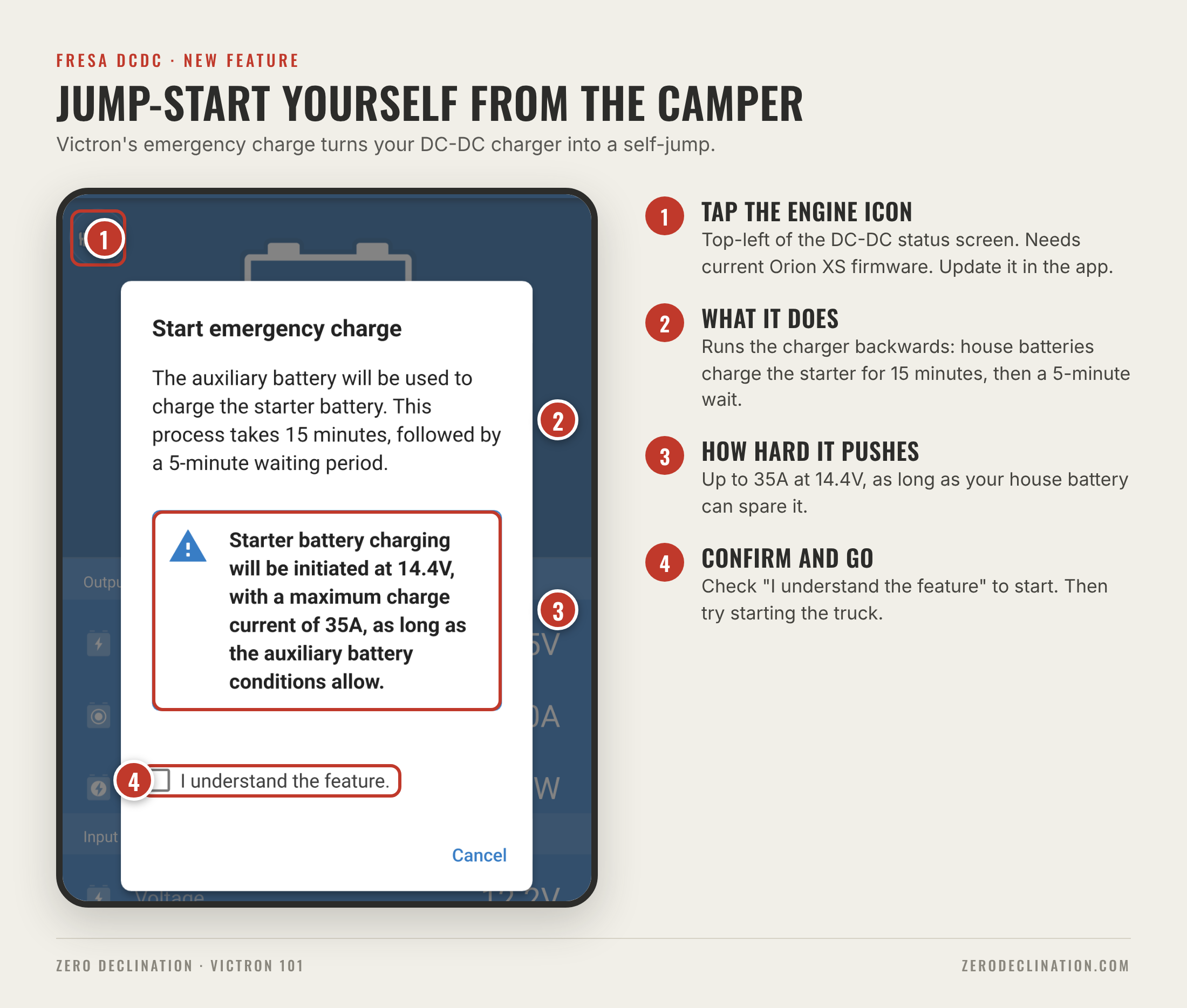
Victron recently added an emergency reverse charge to the Orion XS (50A and 70A). Tap the engine-with-a-lightning-bolt icon, check "I understand the feature," and it runs backwards: house batteries charge the starter battery for 15 minutes at up to 35A, then waits 5 minutes. Dead starter battery? You can jump yourself from the camper.
Already have an Orion XS? Update its firmware in the app to get it.
2.The solar charge controller
The big number at the top is the one that matters most: watts you're making right now. Below it, the screen splits the same way as the DC-DC: Solar (what's coming from the panels) and Battery (what's going into your bank), plus the same charge state.
Watch the numbers change as they pass through the controller. My panels are making 4.5A at 77.5V. The controller converts that to 25.2A at 13.5V for the batteries. Same power (~350W), different shape.
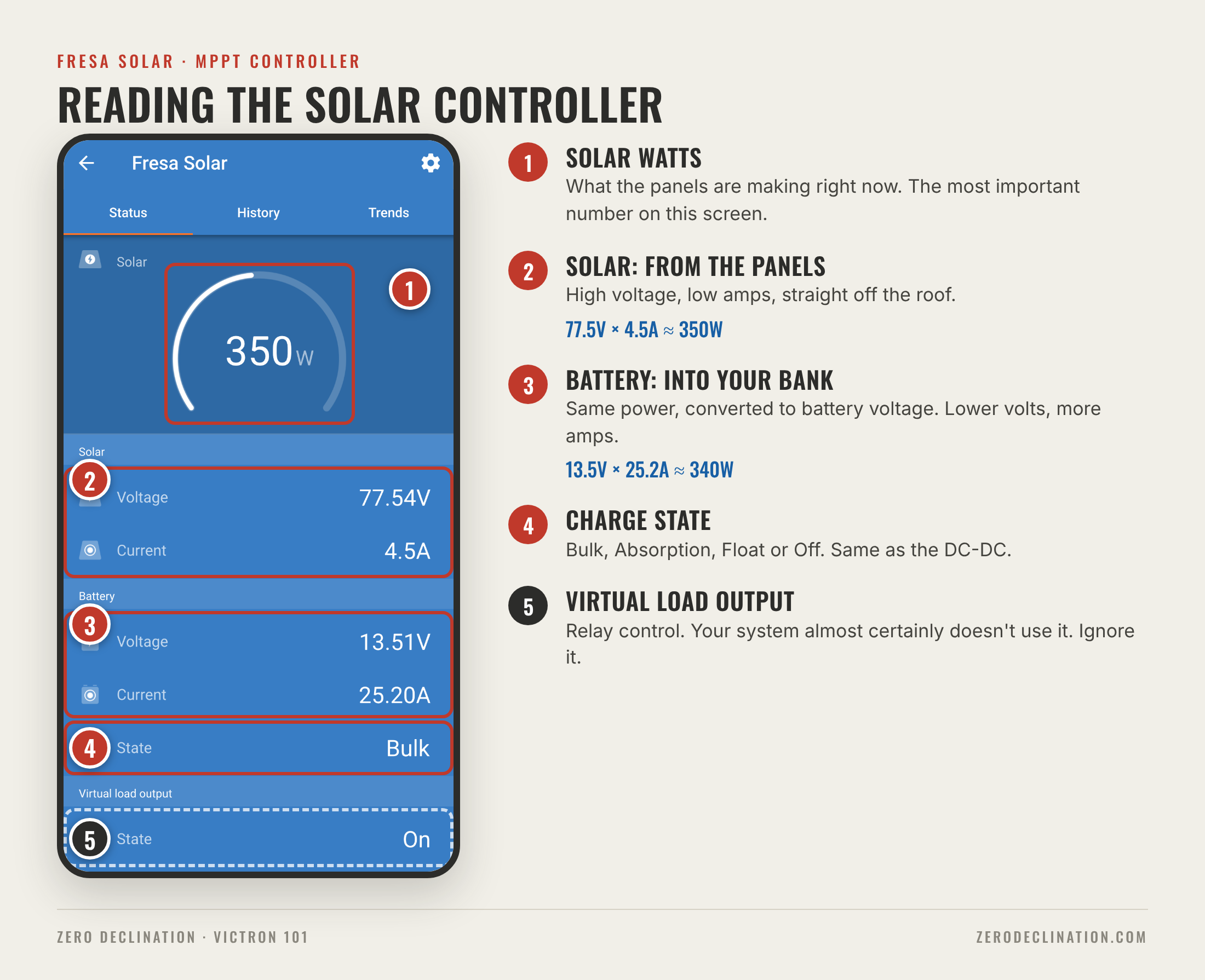
At the bottom you may see Virtual load output. It's for relay control. We almost never build systems that use it. Ignore it.
"Why am I only making 5 watts?"
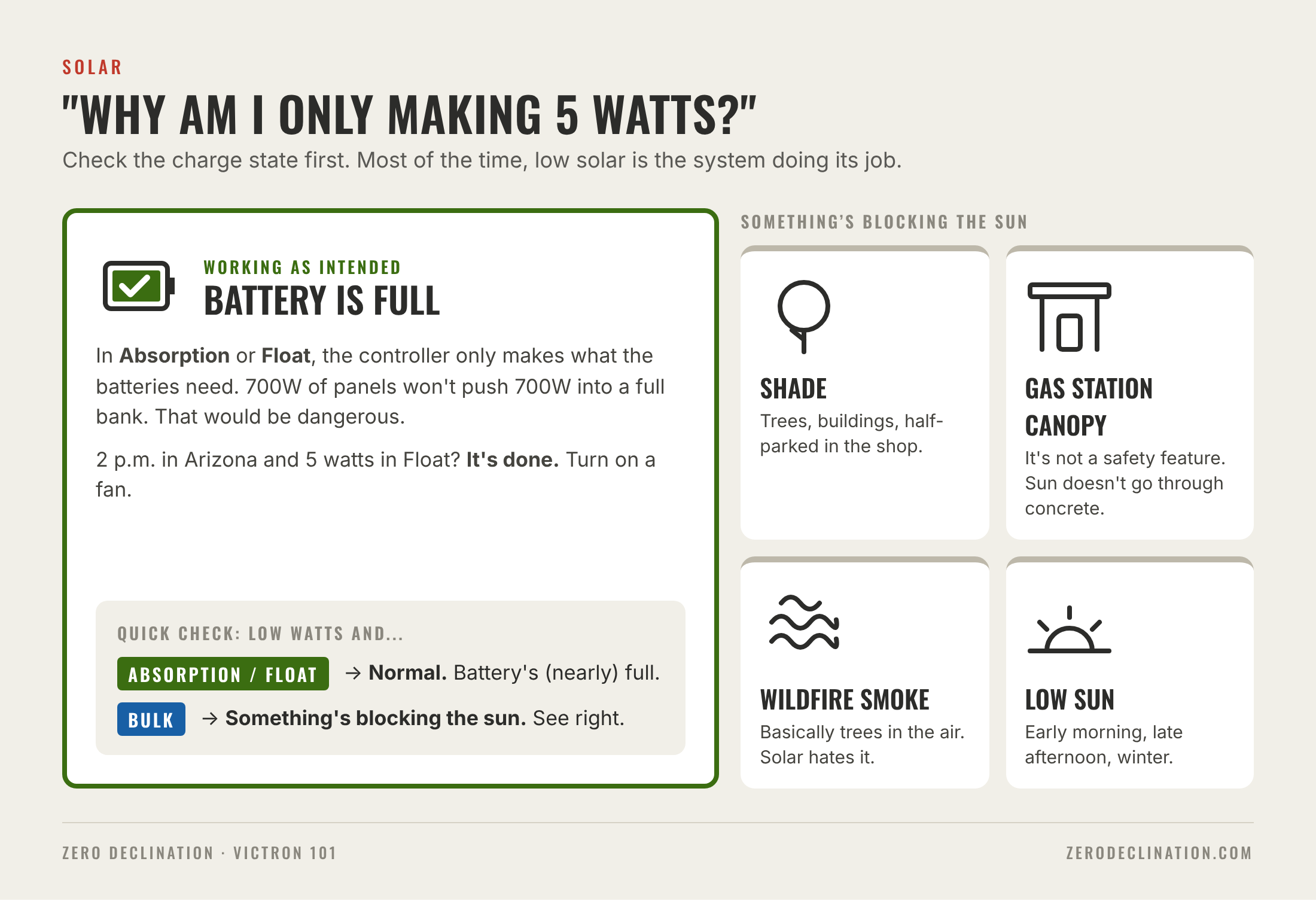
This is the call I get most. Here's the thing: the controller only makes the power the batteries need. If you're in Absorption or Float, the battery is (nearly) full, so the controller backs off. Your 700W of panels won't push 700W into a full battery. That's what a good charger is supposed to do.
So if it's 2 p.m. in Arizona and you're making 5 watts in Float: it's done. It did its job. Turn on a fan and use some power.
The other reasons for low output are simpler than people think:
- Shade. Trees, buildings, or parking half inside the shop.
- Gas station canopies. One customer called to tell me how smart his system was because it "shut off the solar" every time he got gas. Sun doesn't go through concrete.
- Wildfire smoke. Smoke is basically trees in the air. Solar hates it.
- Time of day and season. Low sun, low watts.
The History tab
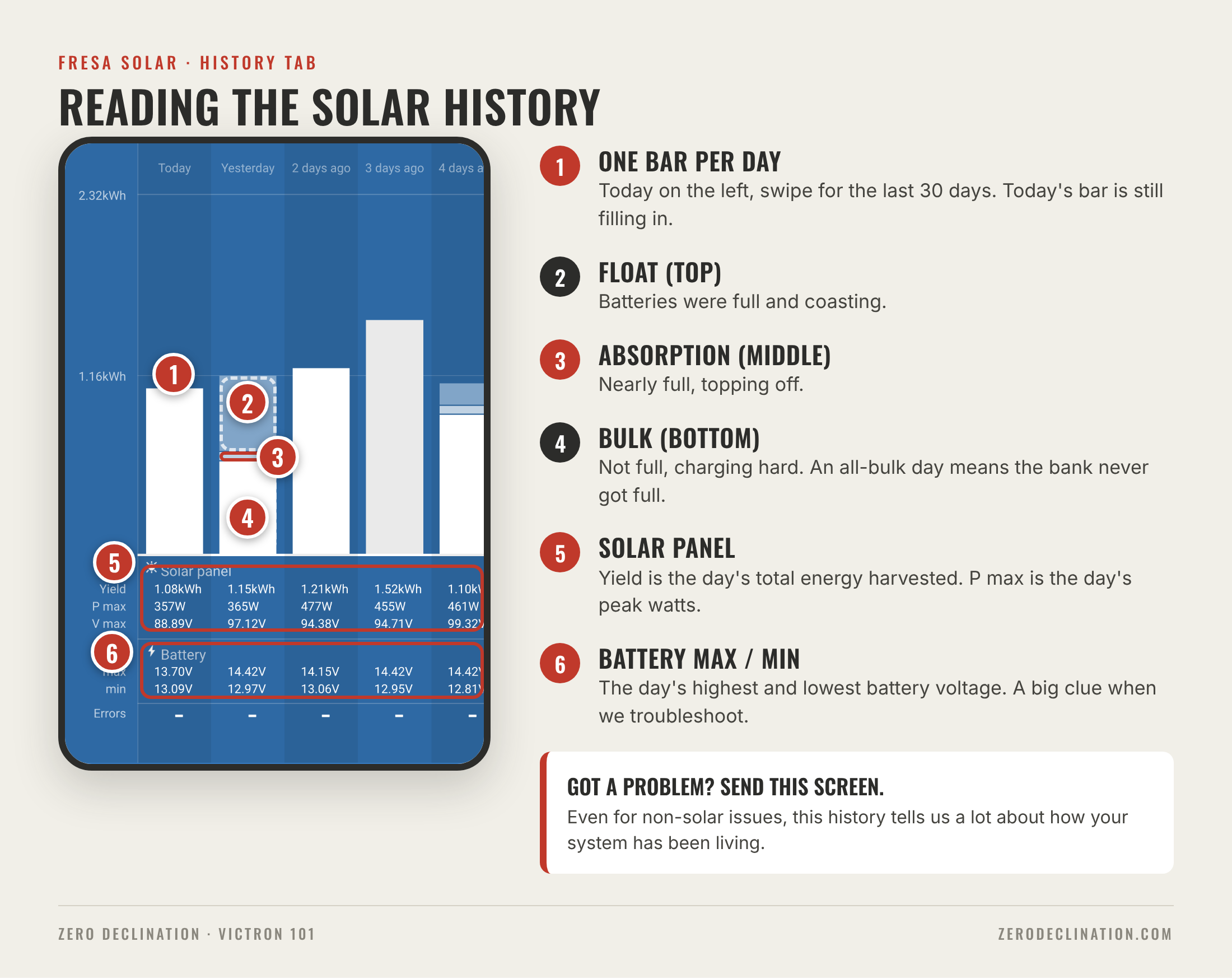
Tap History for a bar per day, going back 30 days. Each bar shows how long the controller spent in each charge state that day: bulk at the bottom, absorption in the middle, float on top. Under each bar: that day's yield, peak watts, and battery high and low voltage.
A day that's all bulk means the batteries never got full. A bar with float on top means they filled up and coasted the rest of the day.
If you ever message me with a problem, even one that isn't solar, I'll probably ask for this screenshot. There's a lot of data in it. I can read it like the guy in The Matrix: send it over and I'll tell you when you parked in the garage and when your aunt came over for dinner.
3.The battery monitor (the important one)
This is a SmartShunt or BMV-712, and it's the most important screen in the app. The other two devices only know about themselves: the solar controller knows solar, the DC-DC knows the DC-DC. The battery monitor doesn't care where power comes from or where it goes. It measures exactly how much goes into the batteries and exactly how much comes out.
Learn two numbers on this screen and you know everything you need to.
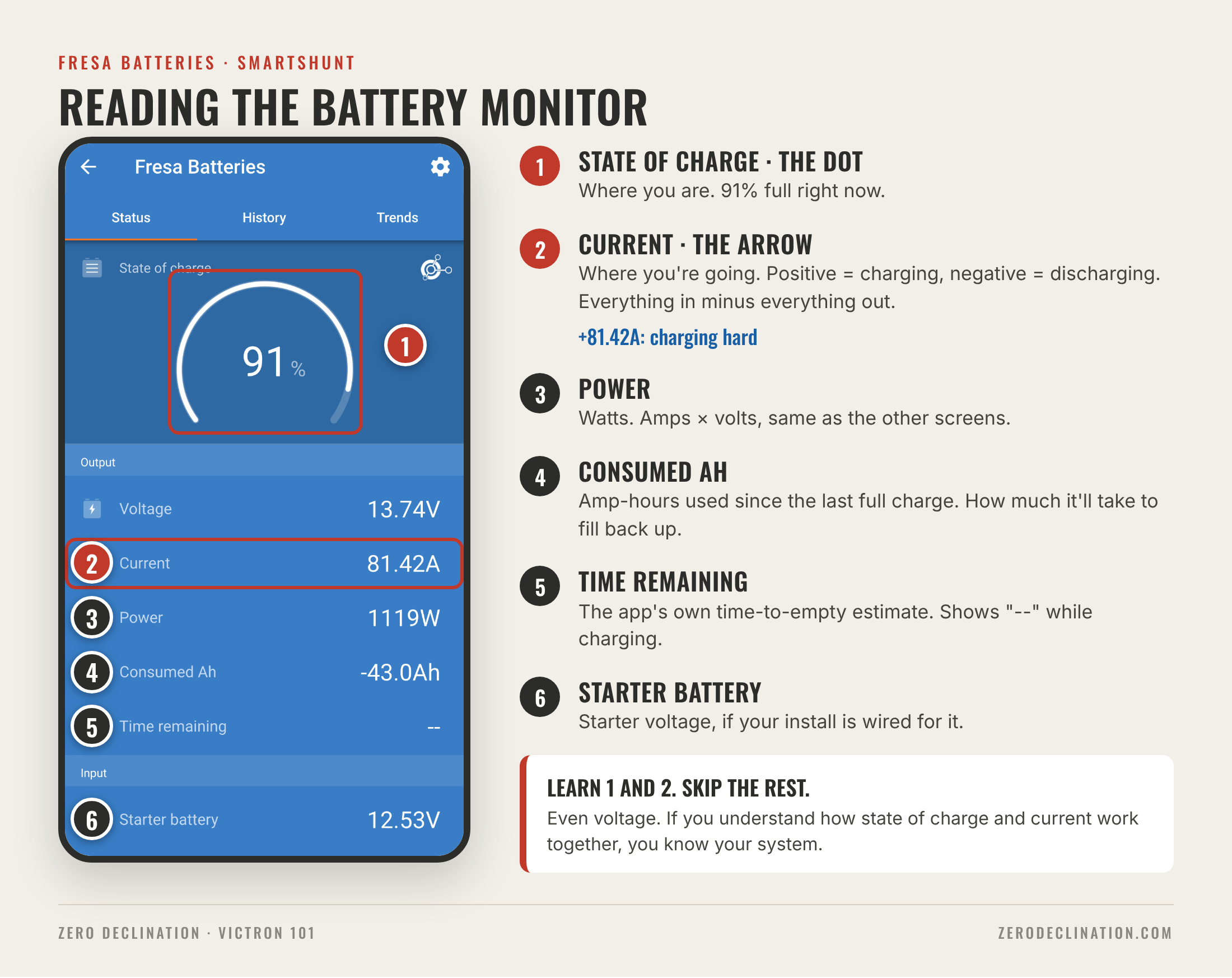
Number one: State of charge = where you are
The big percentage is your state of charge (SOC): how much energy is in the bank. It's your gas gauge.
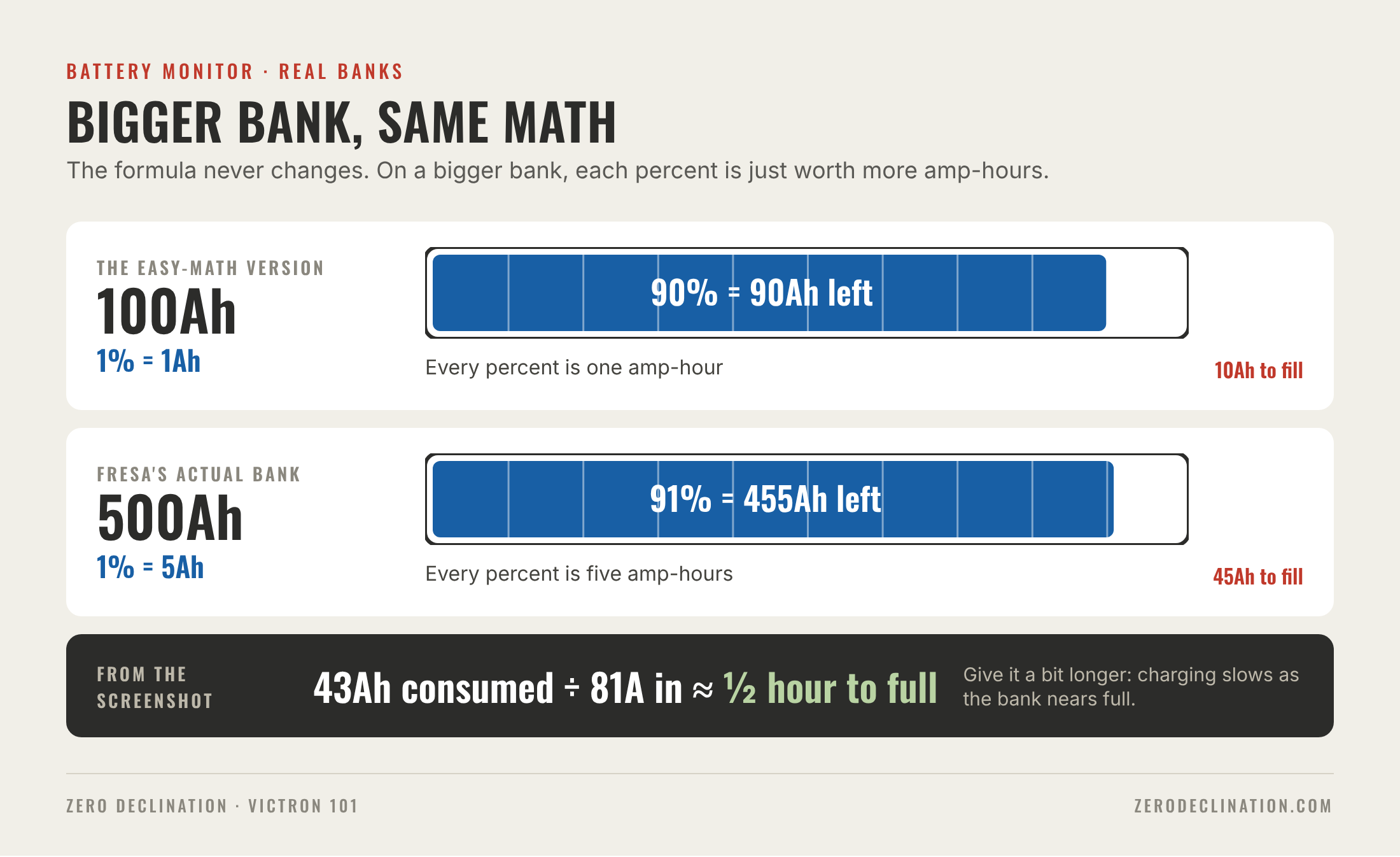
To keep the math easy, pretend you have one 100Ah lithium battery. Then 1% = 1 amp-hour. At 90%, you have 90Ah to use and 10Ah of room to fill. At 20%, you have 20Ah to use and 80Ah to fill.
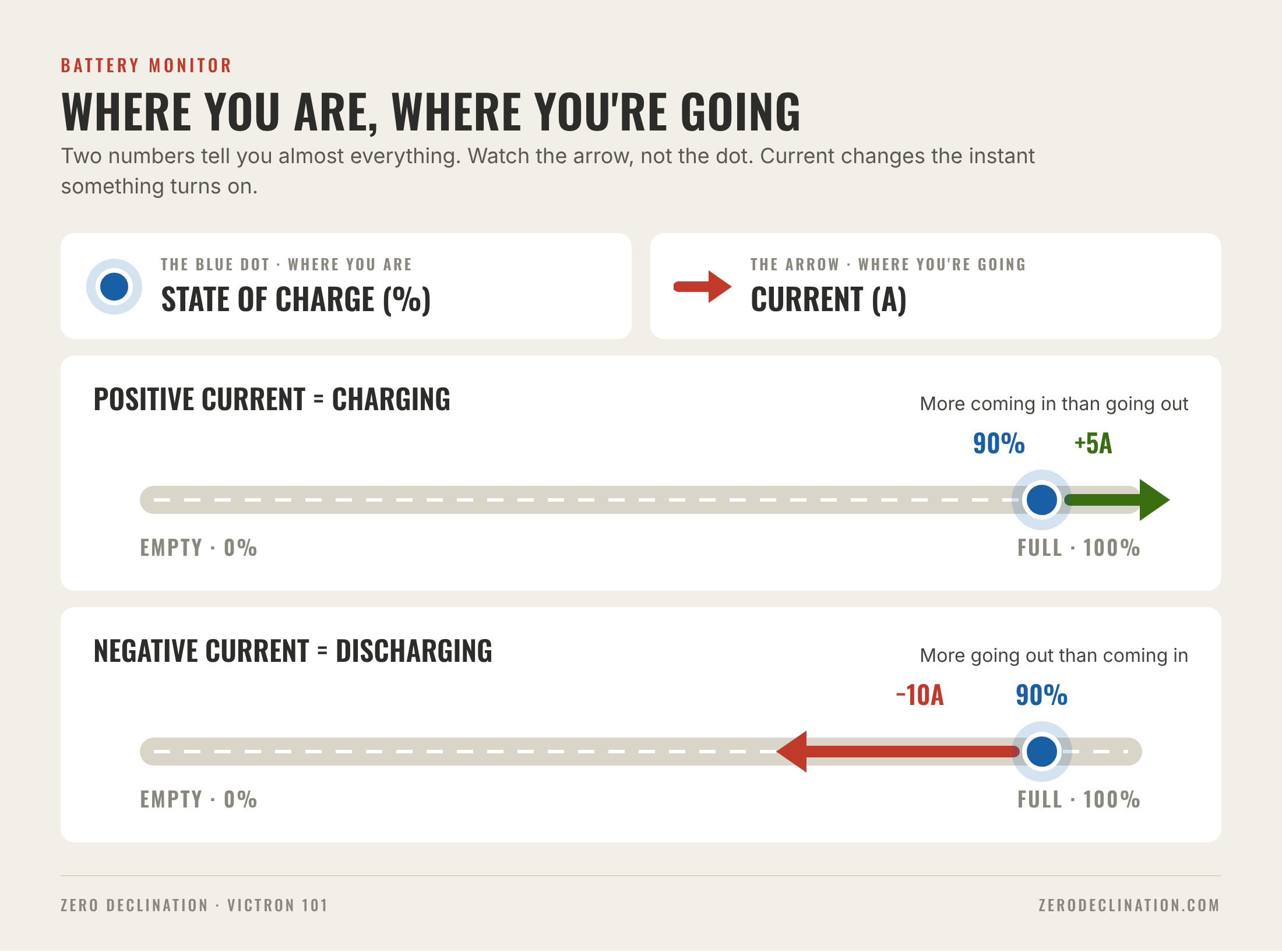
Think of SOC as the blue dot on your GPS. It shows where you are. What it can't show you is where you're going.
Number two: Current = where you're going
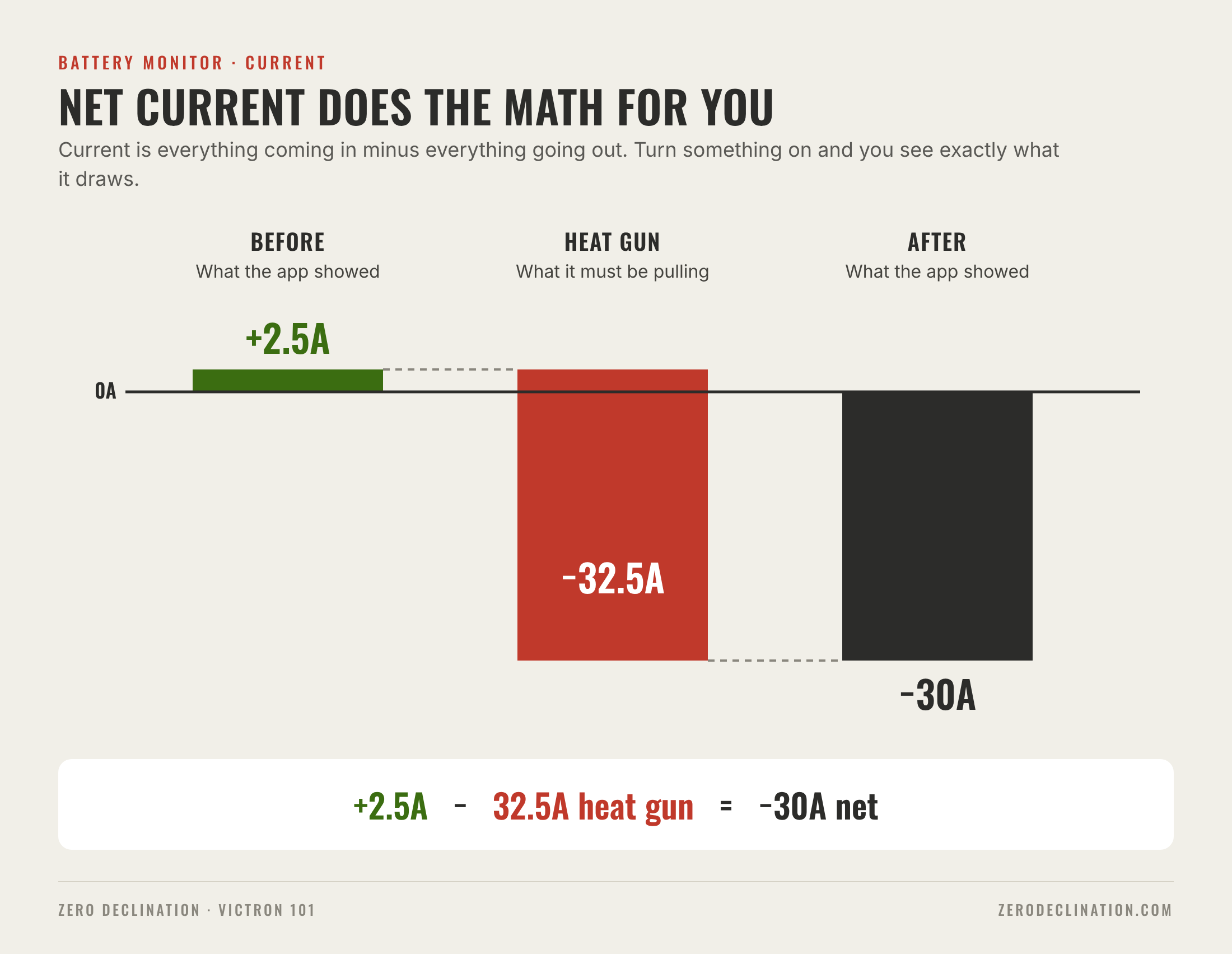
Skip voltage and look at Current. This is net current: everything coming in minus everything going out. The monitor has already done the math. You don't need to check the solar screen and then guess whether the fridge is running.
- Positive = charging. More is coming in than going out.
- Negative = discharging. More is going out than coming in.
Current is the arrow on your GPS. It shows where you're headed, right now.
In the video, current was sitting at +2.5A: a little solar coming in, beating whatever was running. Then Anthony plugged in a heat gun and it swung to −30A. We went from 2.5A in to 30A out, so that heat gun pulls about 32.5A. You see the change the instant it happens. No waiting for the percentage to move.
Put them together: the math
This is the whole answer to "how long can I run the air fryer?" It's division, I promise.
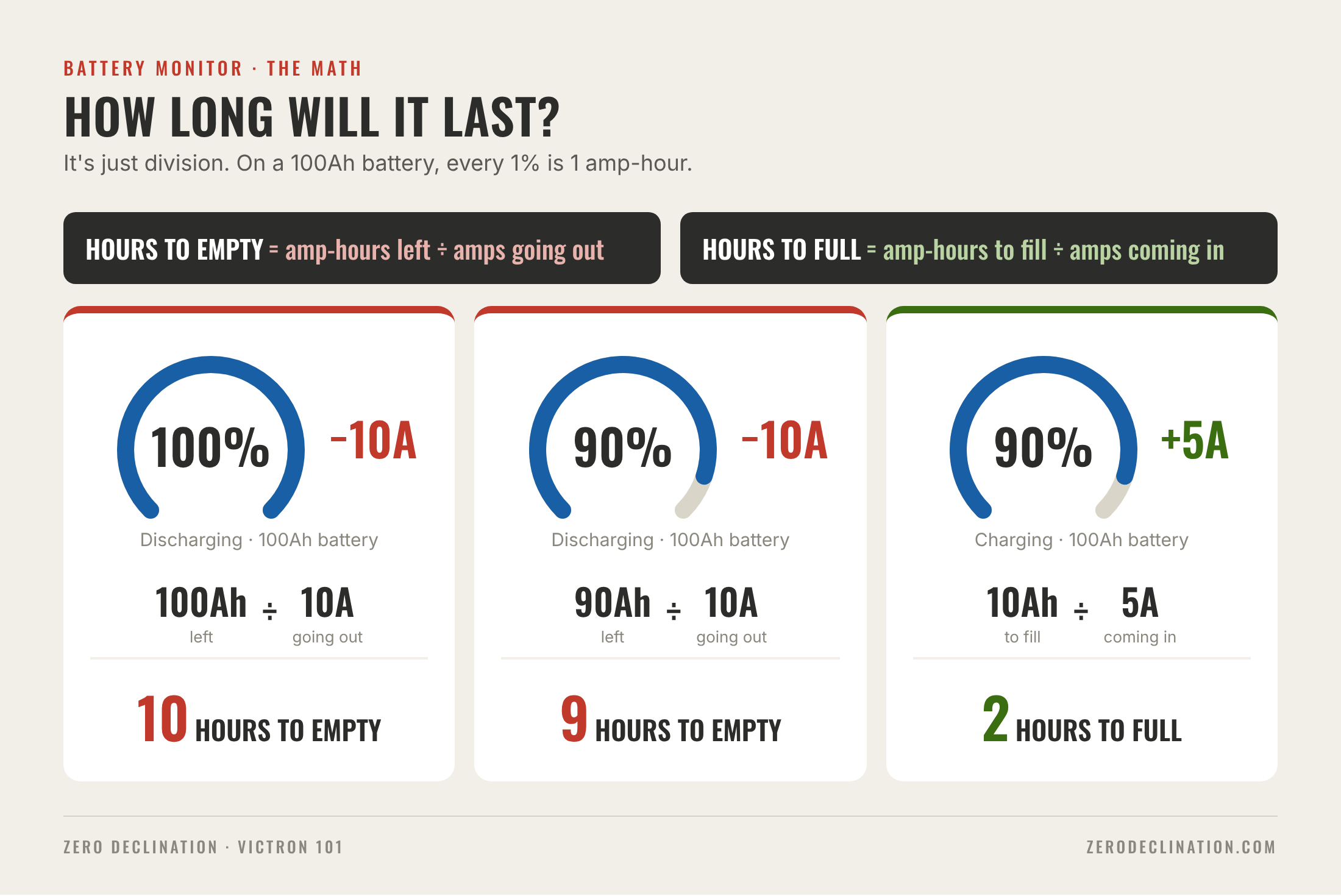
Hours until full = amp-hours to fill ÷ amps coming in
Still pretending it's a 100Ah battery:
- 100% and −10A: 100Ah ÷ 10A = 10 hours until empty.
- 90% and −10A: 90Ah ÷ 10A = 9 hours until empty.
- 90% and +5A: 10Ah to fill ÷ 5A = 2 hours until full.
You don't have to do this every time you open the app. Once you get the feel for it, you'll glance at the two numbers and know whether you're fine for the night, whether something's drawing more than it should, or whether a charger isn't doing its job.
The rest of the screen
- Power: watts, same as the other screens. Amps × volts.
- Consumed Ah: amp-hours used since the last full charge. In other words, how much it'll take to fill back up.
- Time remaining: the app's own time-to-empty estimate. It shows "--" while you're charging.
- Starter battery: some installs also read starter voltage here.
Okay, I lied
Fresa doesn't have a 100Ah battery. She has 500Ah. The math is identical; each percent is just bigger. On a 500Ah bank, 1% = 5Ah.
In my screenshot: 91% SOC, +81.4A coming in, 43Ah consumed. That's about 43 ÷ 81 ≈ half an hour to full, though charging slows down as the battery nears full, so give it a bit longer.
State of charge is the dot. Current is the arrow. There's no reason to sit and watch the percentage climb or drop. Current already tells you which way it's headed, the moment something changes.
Got a question about your system? Screenshot the app and send it over. For more walkthroughs (Truma heaters, water systems, the questions we get all the time), check the Resources tab at zerodeclination.com.